How to Enable VLC Player Rotate Video Function
VLC Media Player is one of the most versatile and reliable media players for today. Remember that it is free, open-source and literally can play almost any video format without extra codecs. No matter you have an MP4, AVI, MKV, FLV, or MOV VLC player usually just works. One cool feature that a lot of people miss is VLC player rotate video function. The rotate feature in VLC is great for videos that was recorded sideways or upside down. Sideways videos can be a result of recording with phones when the orientation sensor doesn’t work right or it was just a result of recording in this way of orientation. Instead of using other editing software you can just rotate the video in VLC and watch it the right way.
Temporarily Rotating a Video During Playback
Rotating a video in VLC during playback is also simple and doesn’t change the file at all. This is perfect if you just want to watch the video the right way on your computer. Rotation can be 90, 180 or 270 degrees or even you able to set your own angle. The change shows up right away and your original file stays the same:
- Open the video in VLC: Launch VLC Media Player and select the video you want to rotate.
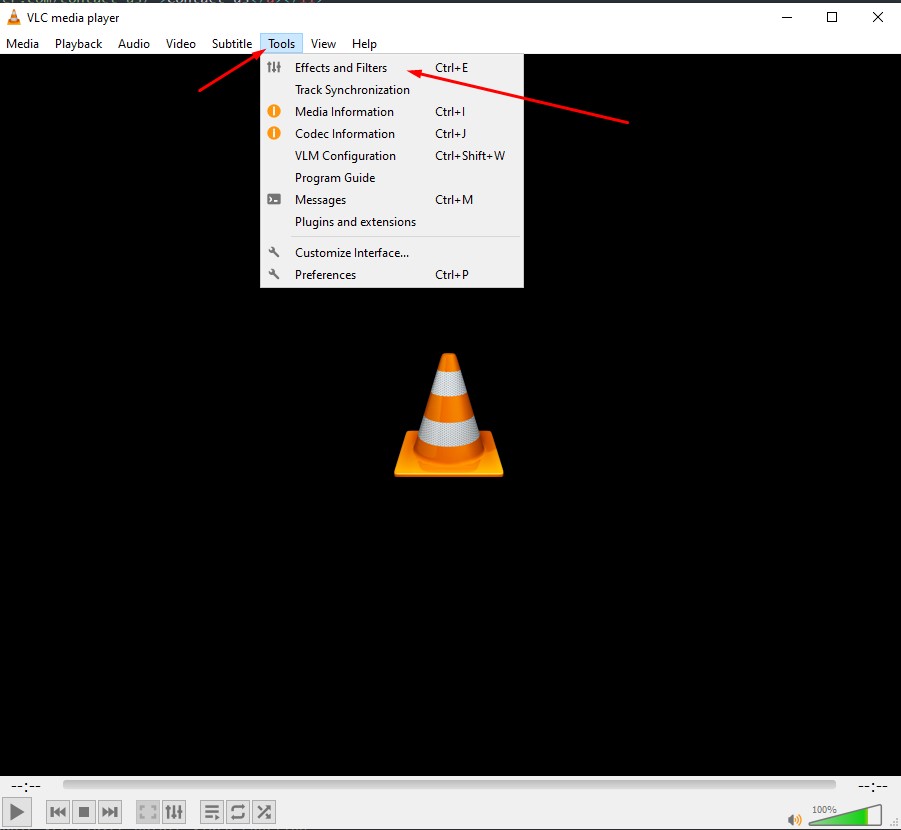
- Access Effects and Filters: Click Tools in the top menu and select Effects and Filters.
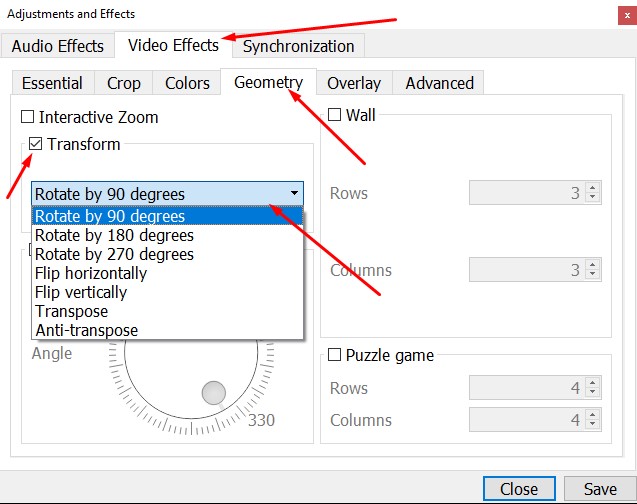
- Navigate to Video Effects: In the window, select the Video Effects tab, then click the Geometry sub-tab.
-
Enable rotation:
- Fixed angles: Check the Transform box and select a rotation angle (90, 180, or 270 degrees) from the dropdown menu.
- Custom angles: To set a specific angle, check the Rotate box and use the dial to adjust the rotation.
- Apply changes: Click Save, then Close to apply the rotation.
This only changes how the video looks while you’re watching it. The original file stays the same. If you want to go back to the normal view, just uncheck the Transform or Rotate boxes.
Permanently Rotating and Saving a Video
If you want to keep the video rotated any way, VLC lets you to save a new copy with all changes. This is cool if you want to share the video or play it on any other devices. Just set the rotation and use VLC’s convert feature to save a new file. The new video will play with the ange that you chose before. Here’s how:
- Rotate the video: Follow the previous steps to set the desired rotation.
- Open Convert/Save: Click Media in the top menu and select Convert/Save.
- Add the video: In the Open Media window, click Add to select your video file, then click Convert/Save.
-
Configure profile settings:
- In the Convert window, click the wrench icon next to your selected profile.
- Go to the Video Codec tab, then select the Filters tab.
- Check the Video transformation filter box. If you set a custom angle, also check the Rotate video filter box.
-
Set destination and start conversion:
- In the Convert window, click Browse to choose a destination file.
- Click Start to begin conversion.
When you save a rotated video VLC makes a new file with your changes. How long it can take - depends on video’s length, resolution and your computer’s speed. Short videos can finish in a few minutes but bigger 4K files will take longer.
Nice feature in VLC is that it is easy to use, even if you’re not tech guru. The tools you need are right in the video effects and convert menus. And since VLC supports so many different formats you usually don’t have to worry about converting your video.
VLC is a simple way to fix video orientation. VLC media player rotate video even while you watch it or simply save them that way if you want. With its wide format support and easy design VLC video player is still one of the best tools for watching and rotating videos on your computer.