How to Trim Video in VLC Media Player
VLC Media Player is a free app that can play probably any audio or video file that exists. Besides of this it also lets you do some basic editing - for example trimming clips. If you want to grab a part of a video without using fancy editing software then VLC media player cut video function can definitely help you.
Enabling Advanced Controls in player
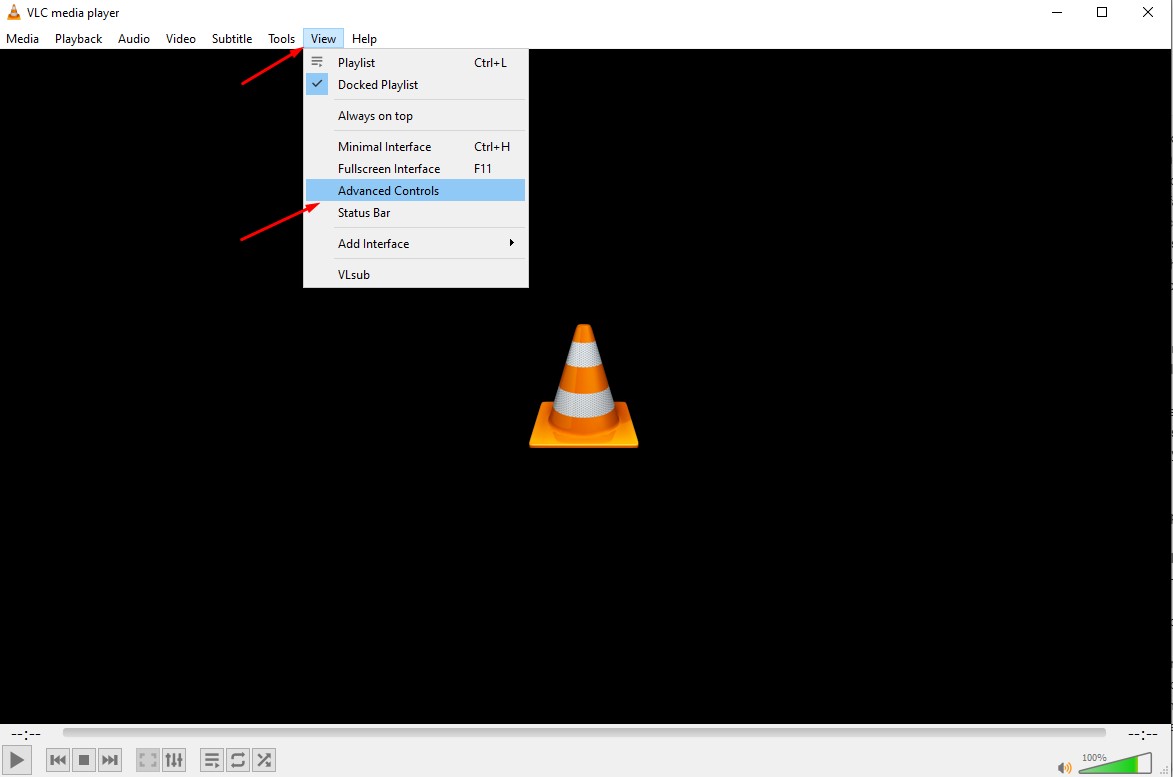
To trim a video with built in vlc player cut video function, all you’ll need to turn on the advanced controls first. Follow next steps to make it:
- Open VLC Media Player.
- Then navigate to the View menu.
- Select Advanced Controls.
After you’ll see some new buttons show up above the regular playback controls in player. The one you need for trim video VLC media player, is the Record button.
Selecting the Desired Segment to trim
After you’ve got advanced controls via vlc media player edit video, here’s how to grab the part of the video you like and want. Just follow next steps:
- Open the video you want to trim. Do this by clicking Media => then Open File (or just drag and drop the file into VLC).
- Play the video or move the slider to get to the spot where you want your clip to start.
- As an option you can use the Frame by Frame button. This lets you move forward one frame at a time.
- When you’re at the right spot, click the Record button (the red circle) to start.
- Hit Play to let the video run.
- When you get to the end of the part you want - click Record again to stop.
VLC media player trim function saves your new clip as a separate video in your Videos folder. The file name as usual starts with "vlc-record" and then the date and time.
Locating and Managing the Trimmed Video
After you’ve recorded your clip, open your file explorer => go to the Videos folder.
- Look for the new file that starts with "vlc-record" in the name (also you can rename or move the file as needed for better organization).
If you want VLC to save clips somewhere else by default - follow next steps:
- In VLC player go to Tools and Preferences.
- Click the Input/Codecs tab.
- Next to Record directory or filename click Browse and pick a new folder.
- Click Save to finish.
After this VLC will save your future clips to the folder you picked. Functionn of VLC player trim video is enabled by these steps and you can save specific segments without additional software.