How to Zoom Video in VLC Media Player
VLC player zoom video gives you a few different ways to zoom in on your videos. You can pick from preset zoom levels, use interactive zoom if you want more control, or crop the video to highlight a certain spot. Here’s a quick look at how each one works.
Using Interactive Zoom
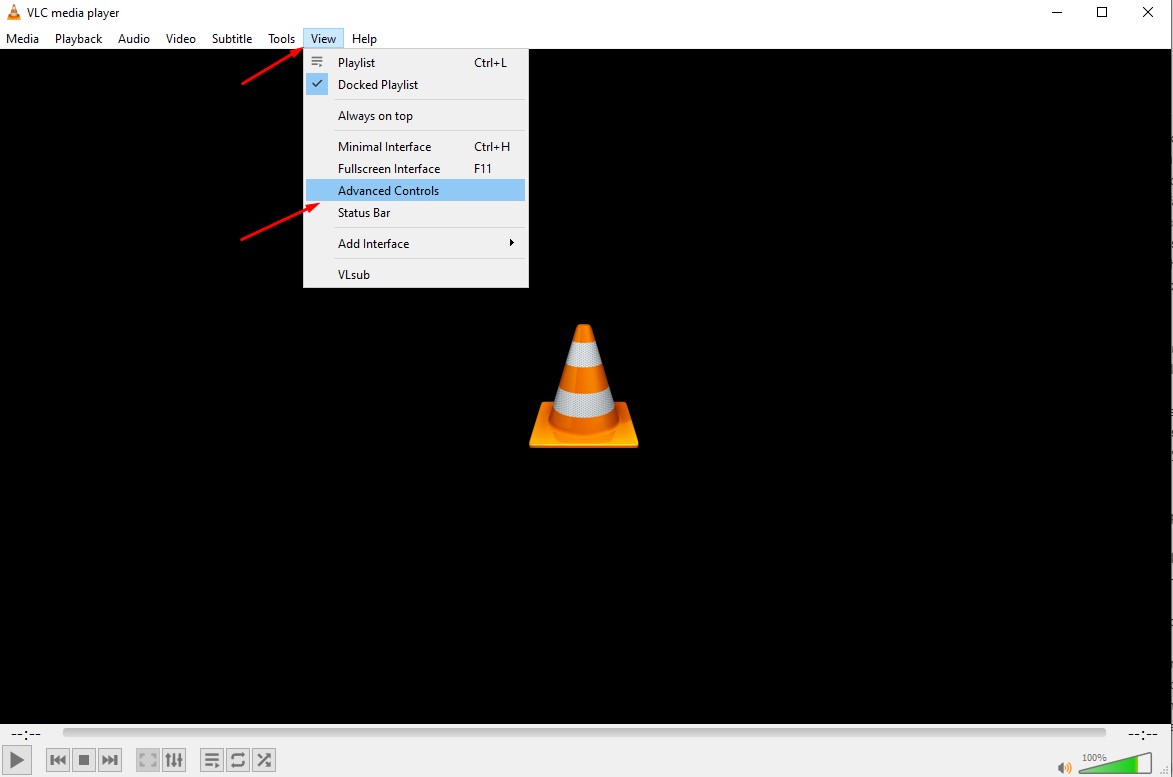
With Interactive Zoom you can choose any part of the video and zoom to see details very close. This comes usefull if you want to check something small without changing the original file. Just open the Tools menu in VLC to turn it on and go to Effects and Filters, click on the Video Effects tab, and check the box for Interactive Zoom:
- First, open VLC. Go to Tools, then choose Effects and Filters. You can also just press Ctrl + E on your keyboard.
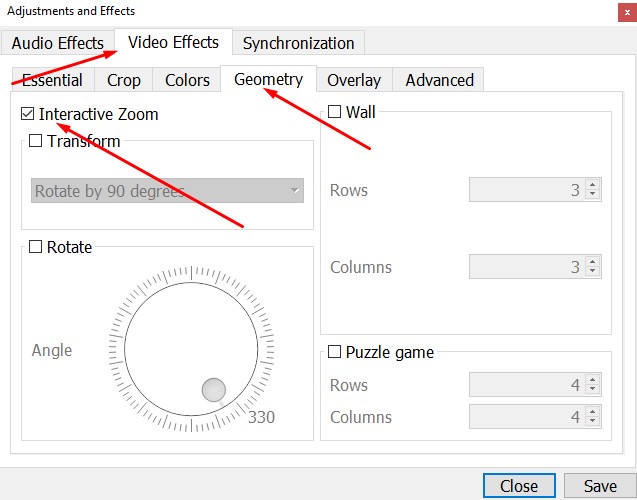
- In the window that pops up, click on Video Effects, then go to the Geometry tab. Check the box for Interactive Zoom, then hit Save and Close.
If you go with interactive vlc player zoom, you’ll see a small preview window pop up in the top-left. Just move the white box over the part you want to zoom in on. There’s also a slider underneath, so you can fine-tune the zoom level until it looks right.
VLC Player Zoom Video via the Video Menu
If you want a quick way to zoom, VLC has some preset zoom levels in the Video menu.
- While your video is playing (and not in full-screen), click Video at the top of the window.
- Hover over Zoom, then pick one of the options: 1:4 Quarter, 1:2 Half, 1:1 Original, or 2:1 Double.
For a quick zoom, just tap the Z key on your keyboard. Each press bumps up the zoom level. Keep in mind, this only changes the size of the video window, not the video itself, and it might not work if you’re in fulSo, whether you want a quick zoom or more control, VLC has you covered.
Utilizing Keyboard Shortcuts
You can also use keyboard shortcuts to zoom in or out even faster.
- To zoom in, press Shift and the equals key (or Shift and Plus).
- To zoom out, press Shift and the minus key (or Shift and Underscore).
With these zoom tools, you can adjust any video in VLC to fit how you want to watch. Whether you want a quick preset zoom, more precise control, or to crop the frame, VLC makes it easy to focus on the details that matter to you.